

 Menu
 Close

- News
- Signing in to your Ski Club account
Since Monday 9 November, you no longer need a password to sign in. Instead, we email you a short code each time, or you can sign in with your Google or Apple account. There is nothing to set up and nothing to remember.
Why we're changing
Passwords are easy to forget and easy to steal. With a code, only someone who can open your email can get into your account. It also means no more password resets.
You may already sign in this way elsewhere. Emailed codes and “Continue with Google” or “Continue with Apple” are now common across the industry, used by many of the online services, retailers and apps you use every day.
Signing in with an email code
- Choose Sign in at the top of any page on the Ski Club website, as you do now.
- Enter the email address the Ski Club has for you.
- We’ll email you a 6-digit code. The subject line is “Your Ski Club sign-in code”.
- Type the code in. You’re signed in.
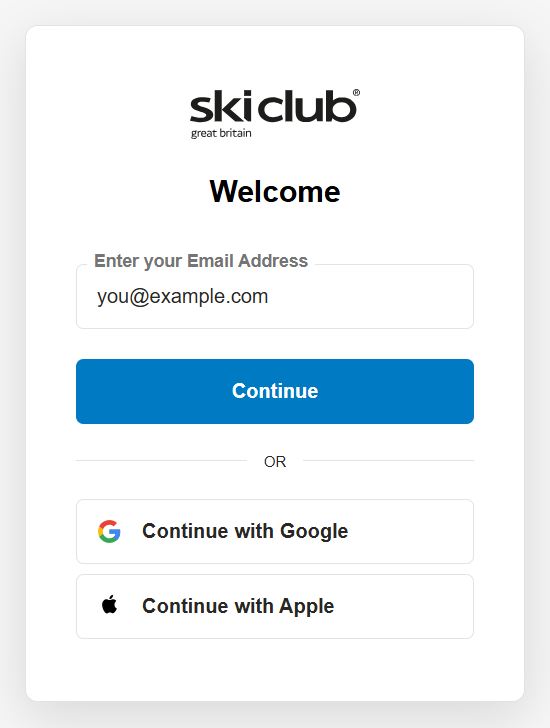
Steps 1–2: enter your email address
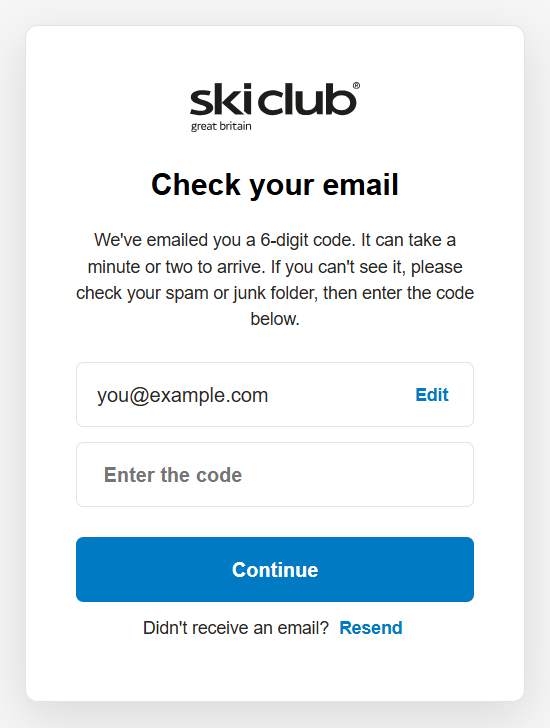
Steps 3–4: enter the code from your email
Each code lasts 5 minutes and works only once. If it runs out, just ask for a new one.
Signing in with Google or Apple
Choose Continue with Google or Continue with Apple on the sign-in page.
- If your Google or Apple account uses the same email the Club has for you, you’re signed straight in.
- If it uses a different email (or Apple’s “Hide My Email”), we’ll ask for the email the Club has for you and send a code to it. Enter the code once, and your Google or Apple sign-in will work on its own from then on.
You can also connect Google or Apple at any time from Sign-in & security in your account.
Signing in to the Ski Club app
The app works the same way: no password, just a code or your Google or Apple account.
- Update the app first. Get the latest version of the Ski Club app from the App Store or Google Play. Older versions can no longer sign you in.
- Open the app and tap Sign in. A Ski Club sign-in page opens.
- Enter the email address the Club has for you, or choose Continue with Google or Continue with Apple.
- If you chose email, we’ll send you a 6-digit code. Switch to your email, copy the code, then come back and enter it.
- You’re returned to the app, signed in.
Tip: keep the sign-in page open while you fetch the code. If you close the app or start again, we send a new code and the first one stops working. Always use the most recent code.
Once you’re signed in, the app keeps you signed in, so you won’t need a code every time you open it.
Questions
No. You no longer need your old password. Just make sure you can get to the email address you gave us.
Check your spam or junk folder, and wait a minute before asking again. Make sure you entered the email address the Club holds for you.
Make sure you have the latest version of the app from the App Store or Google Play. If you asked for more than one code, only the newest one works.
Sign in with your old address if you can still open it, then update it in your account. If you can’t open it any more, call the Membership team and we’ll update it for you.
You can ignore it. Nobody can get into your account with the code alone. If it keeps happening, let us know.
Yes. We never see or store a password, and a code is useless once it expires or has been used.
Need help?
The Membership team can help: call 020 8410 2015 or email [email protected].




 Menu